

Creating a logo can help brand your site. It’s a recognizable image. It is also surprisingly easy to design a logo on a computer and can be done for free!
To design a logo on a computer, pick a free website or tool, such as Canva, Wix, Hatchful, or Design Evo. Use a template or start from scratch and add the graphics, text, and colors you want. Once you download the image, it is ready to be used as your logo.
Let’s look at some options for free logo makers and how to design a logo.
Can you create your own logo for free?
Anyone can create their own logo for free. There are a variety of free online websites or tools that allow people to create their own logos.
What is a good free logo maker?
A good logo maker offers free downloads and is easy to use. I recommend Canva since it is free, has a ton of features and templates, and is very easy to use. This is what I use now for all my graphics.
Sites where you can make a logo:
- Canva
- Design Evo
- Adobe Express
- Shopify’s Hatchful
- Wix
- Free Logo Creator
- Experte
- Logo Genie
- Make Logos Free Online
- My Free Logo Maker
- Name Cheap
- Logo Crisp
- Free Logo Design
- Logaster
- Design Hill
- Jimdo
- Looka
- Logo
- Tailor Brands
- LogoMakr
- Ucraft
- Hostinger
- Logo Type Maker
- Logo Garden
- Vectr
- Zen Business
You can also use a stock image site (such as VectorStock) that is either free or paid to get a photo or graphic to use as your logo.
If you already have the software, then Microsoft Word or Adobe Illustrator can be used to make a logo.
No matter what website or program you use, make sure to check their terms and conditions to see usage rights and if attribution is required.
How to Design a Logo
Designing a logo does not need to be an overly complicated process.
Follow these simple steps to design a logo:
- Think about branding—clarify your message and target audience.
- Do some research—look at other logos from similar brands. See if any colors are popular or what stands out to you.
- Pick a tool or program to create your logo (I recommend Canva).
- Find out the size you want your logo (the optimal size varies depending on the website’s theme).
- Pick colors, text, and graphics (make sure the text is legible).
- Create your logo using your chosen software.
- Experiment and get feedback. Don’t be afraid to make changes.
- Save and download your final logo.
While hopefully you considered trademark issues while choosing your domain name, if you haven’t, it is important to make sure that your logo won’t infringe on anyone else’s trademarks.
Example: How to design a logo on Canva
Go to Canva’s free logo maker page. Click “Start designing a custom logo”:
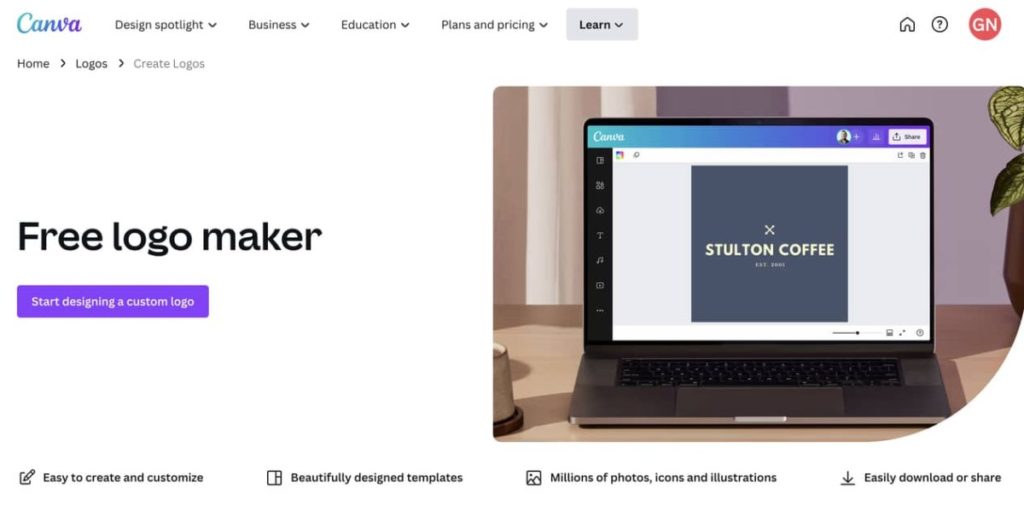
From there, you will see the options on the side:

You can click on:
- “Design” to see the logo templates available
- “Elements” to see graphics and photos
- “Text” to add text and pick fonts
- “Upload” to add your own graphics or photos
When you are done, click “Share” in the top left-hand corner.
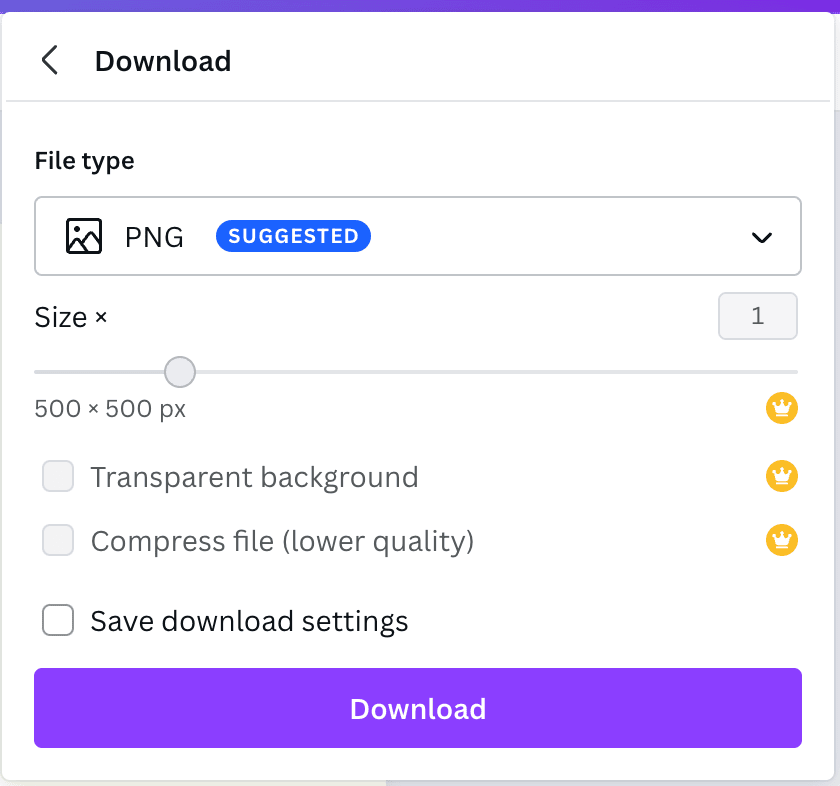
Click “Download” from the dropdown list:

Once you click that, you will see options for File Type and can download the image.
Example: How to use Design Evo to create a logo
Design Evo has a variety of options and is super easy! I have used it to create logos before.
To start, click “Make a logo.”

You can pick to either start from scratch or search the templates. Start by looking to see if the templates have what you want. If you don’t have an image in mind, then take a minute to search the templates first to see if you like anything and get some ideas.
If you don’t find what you want, click start from scratch in the top left-hand corner.

From here, you can search for icons and add text and shapes. Start by searching for an icon—type in a keyword for what you want to be on your logo.

Once you find what you want, just drag and drop it onto your blank page. Then you can turn it and resize it. From there, you can add more icons, add text, and add shapes. Once you are all done, click download in the top right.
Once you click download, you will get a page that looks like this:

This lists the different options and what they come with. Then you can decide if you want to buy it (and what package) or if you want to stick with the free version. If you want the free version, click “Download a low-resolution free logo.”
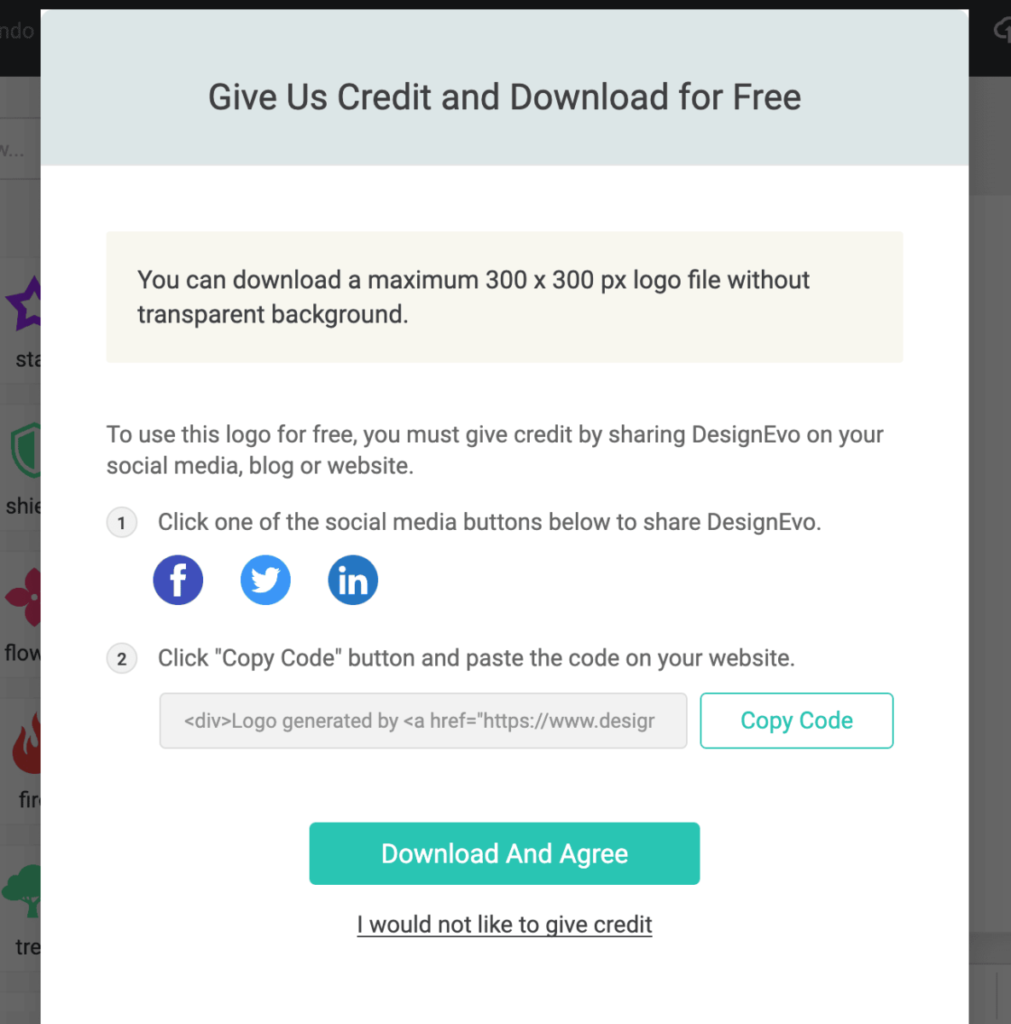
You will see this page that states that you must share DesignEvo on your blog/website and social media if you use their free logo. Click download and agree (and make sure that you actually do share it!).
Paid options for logos
If you don’t want to make your logo yourself, some inexpensive options include hiring someone to design it for you from Upwork or Fiverr.
Another inexpensive option is to use 48 Hours Logo, where you describe what you want and run a contest to design your logo and offer prize money. After 48 hours, you review your options, pick a winner, and pay them.
Now, what do I do with the logo?
You might want to use your logo on social media (I used it as my profile picture). You will definitely want to put it on your blog.
Share this post with friends to help them make a logo for free!